PowerShell: An Offline Backup Drive That Takes Itself Offline
The Problem With a Permanently Mounted Backup
If your backup drive is always connected and always mounted, it is not a backup in the way that matters. Ransomware encrypts what it can reach, and a mapped drive letter is reachable. So is a USB drive sitting in the port when the infection runs.
The standard advice is 3-2-1: three copies, two media, one off-site. What people skip is the "offline" half of the 2 — a drive that is connected 24/7 is one copy with a very short fuse.
The idea here is a script that mounts the drive, backs up, then takes the disk offline again, so the window in which it is reachable is measured in minutes rather than months.
How It Works
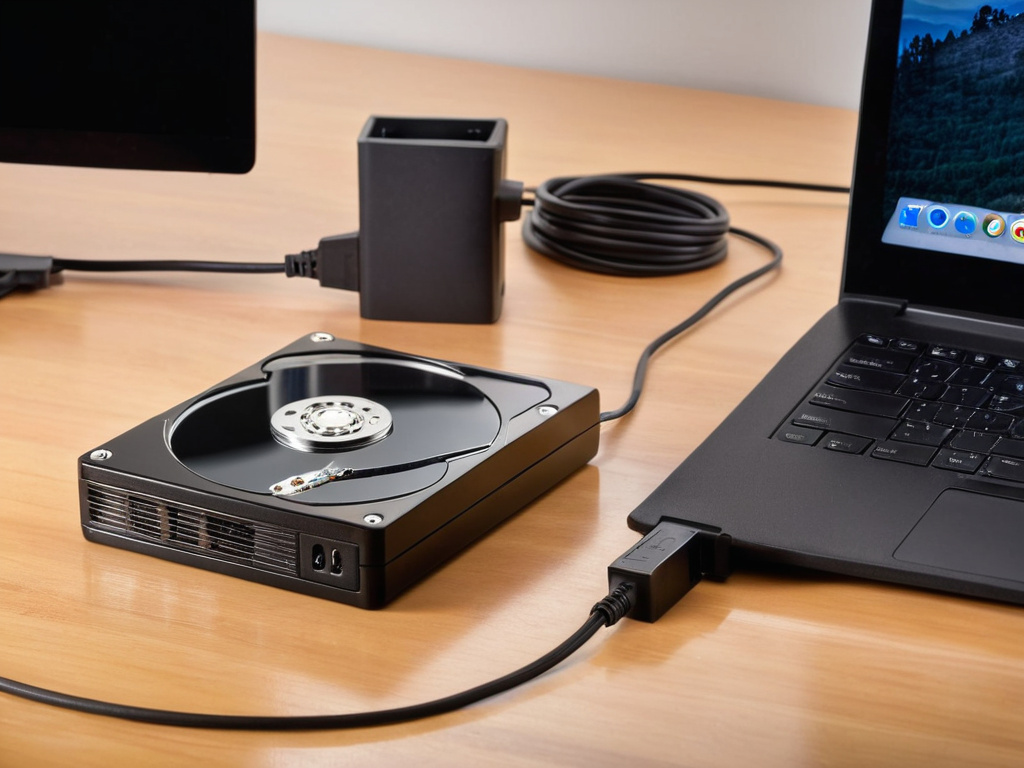
Windows can administratively take a whole disk offline: the device stays connected, the filesystem is dismounted, and no drive letter is exposed. Set-Disk -IsOffline $true does it, and the operation is reversible in seconds.
The flow:
- Find the disk by its unique id (stable across reboots; drive letters are not)
- Bring it online
- Wait for the volume to actually appear
- Run the backup
- Take it offline again
The Script
# Offline-Backup.ps1  - run as administrator
# One-time: find the id of your backup disk
#   Get-Disk | Format-Table Number, FriendlyName, UniqueId

$DiskUniqueId = 'xxxxxxxx-xxxx-xxxx-xxxx-xxxxxxxxxxxx'
$MountLetter  = 'W'
$Source       = 'C:\Users'
$Destination  = "${MountLetter}:\Backup"

function Wait-Online {
    param([int]$TimeoutSeconds = 60)
    $elapsed = 0
    while ($elapsed -lt $TimeoutSeconds) {
        if (Test-Path "${MountLetter}:\") { return $true }
        Start-Sleep -Seconds 2
        $elapsed += 2
    }
    return $false
}

Set-Disk -UniqueId $DiskUniqueId -IsOffline $false
if (-not (Wait-Online -TimeoutSeconds 60)) {
    Write-Error "Backup volume never came online"
    Set-Disk -UniqueId $DiskUniqueId -IsOffline $true
    exit 1
}

robocopy $Source $Destination /MIR /R:1 /W:1 /NP /LOG:"C:\Logs\backup.log" /TEE

$rc = $LASTEXITCODE
# robocopy: 0-7 are success-ish, 8+ are failures
if ($rc -ge 8) { Write-Warning "robocopy reported errors (code $rc)" }

Set-Disk -UniqueId $DiskUniqueId -IsOffline $true
Write-Host "Backup finished (rc=$rc); disk returned to offline state."
Two details worth keeping:
-UniqueId, not -Number. Disk numbers change when hardware changes or a device is removed and re-added. The unique id is stable, and using the number is how a script ends up taking the wrong disk offline.
The Wait-Online loop. Bringing a disk online is asynchronous. Running robocopy immediately after Set-Disk usually fails because the volume is not mounted yet — this is the flaw in most scripts that try this trick.

What This Actually Protects Against
Let me be precise, because this technique is often oversold.
It helps against ransomware that runs while the disk is offline, which is most of the time. The infection cannot encrypt a volume that has no drive letter.
It does not help if ransomware is active during the backup window. It will encrypt the drive exactly like any other. So keep the window short, and keep a history (/MIR gives you a mirror, not versions — consider versioned folder names if you need to go back).
It does not defeat an attacker who is already running as administrator on the machine. They can bring the disk online themselves, because that is precisely what the script does. This reduces exposure time; it does not create an air gap.
It is not off-site. A local drive, online or off, dies in the same fire as the computer. The 3-2-1 rule still needs a copy that leaves the building.
The honest summary: this closes the "dormant but reachable" window for a drive you leave plugged in. It is a genuine improvement over an always-mounted drive, and it is not a substitute for an off-site copy.
Scheduling It
Register it as a scheduled task running as SYSTEM at a quiet hour, with the offline step as the last line so a crash mid-run leaves the disk connected rather than the reverse:
$task = New-ScheduledTaskAction -Execute 'PowerShell.exe' `
    -Argument '-NoProfile -ExecutionPolicy Bypass -File C:\Scripts\Offline-Backup.ps1'
$trig = New-ScheduledTaskTrigger -Daily -At 3am
$set  = New-ScheduledTaskSettingsSet -StartWhenAvailable -WakeToRun
Register-ScheduledTask -TaskName 'OfflineBackup' -Action $task -Trigger $trig -Settings $set -User 'SYSTEM'
-User 'SYSTEM' avoids storing a password entirely, which is worth more than it sounds — see the scheduled task template article for why the usual -User x -Password y pattern is a bad habit.
Verifying It Works
A backup you have not checked is a hypothesis. Once a month, bring the disk online manually, open the destination folder, and restore one file to a scratch location. It takes two minutes and it is the only test that tells you the truth.
Don't trust the download button. Trust the hash.
If this was useful, More hands-on tech guides at TechGeek. No pressure — read it whenever it's useful.
