Once You Go SSD You Never Go Back
The Single Best Upgrade Left
If you have an older machine with a spinning hard drive and you want it to feel new, an SSD is the highest-value change you can make. Not a RAM upgrade, not a fresh Windows install — the drive.
The reason is mechanical. A hard drive has platters spinning at 5,400 or 7,200 RPM and a read head that physically moves to find data. Random access costs milliseconds. An SSD has no moving parts and answers in microseconds. The machine stops waiting on the disk, and almost everything you do involves the disk.
A cold boot that took 90 seconds commonly drops to 15. Application launches, Windows updates, opening a folder with thousands of photos — all of it changes character.
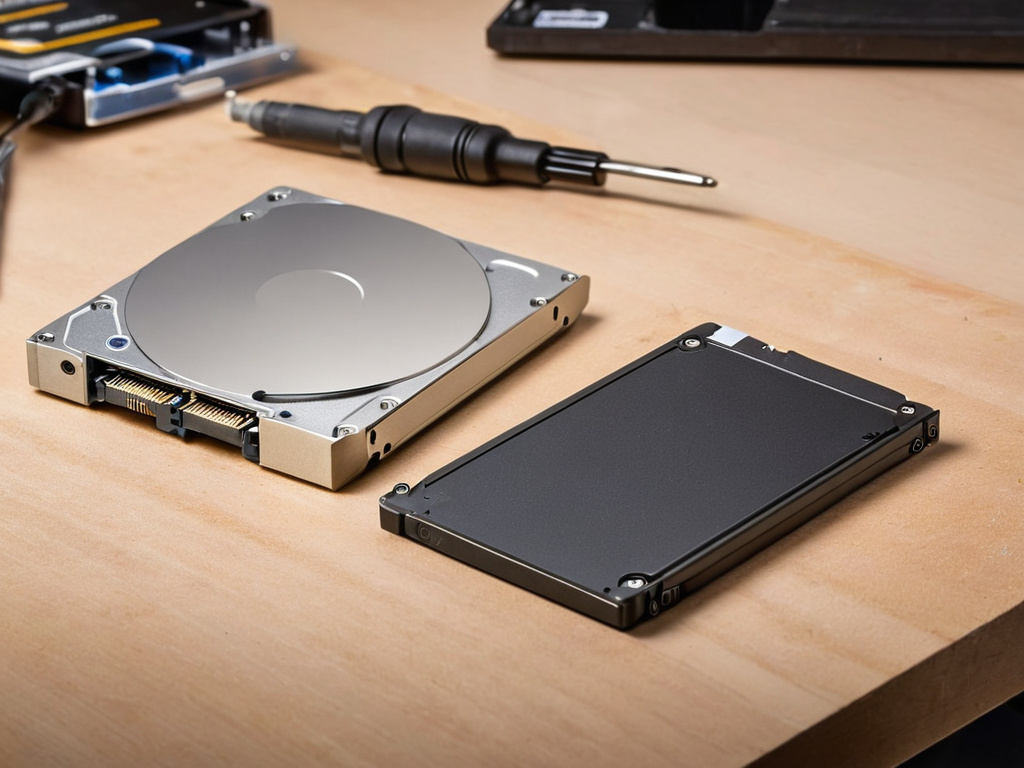
What Actually Changes, and What Does Not
Faster: boot, application launch, file operations on small files, updates, virtual machine disk I/O, anything that touches swap.
Unchanged: CPU-bound work. Video encoding, compiling a large project, games that are GPU-limited. If your machine is slow because the processor is old, an SSD will not fix that, though it will make the machine feel less broken while it works.
That distinction matters because people buy an SSD expecting a faster machine and get a faster feeling machine. It is a real improvement; it is not a CPU upgrade.
Choosing One
Three numbers decide whether you are buying the good version or the cheap one.
Interface first. Check what your machine accepts.
- SATA 2.5-inch — the universal option. Fits any laptop or desktop from the last fifteen years. Caps out around 550 MB/s, which is still a transformation from a hard drive.
- mSATA / M.2 SATA — older compact laptops. Buy M.2 SATA, not NVMe, if that is what the slot supports.
- M.2 NVMe (PCIe) — modern machines, much faster (2,000–7,000 MB/s). Only worth it if the slot exists and the workload is I/O heavy.
Open the machine or look up the model before ordering. Buying NVMe for a SATA-only M.2 slot is the most common wasted purchase here.
DRAM cache. A drive with a DRAM cache maintains a mapping table at speed; a DRAM-less drive stumbles under sustained writes. For an everyday machine, prefer DRAM. It is the difference people notice as "my SSD got slow".
Cell type. TLC over QLC for anything you write to regularly. QLC drives can be dramatically slower once their small SLC cache is exhausted, which shows up during large copies and Windows updates.
Brand does not matter nearly as much as those three. Capacity: 500 GB is the practical floor now, 1 TB if the budget allows, because SSDs slow down as they fill and headroom is performance.
Migrating Without Losing Anything
Two approaches.
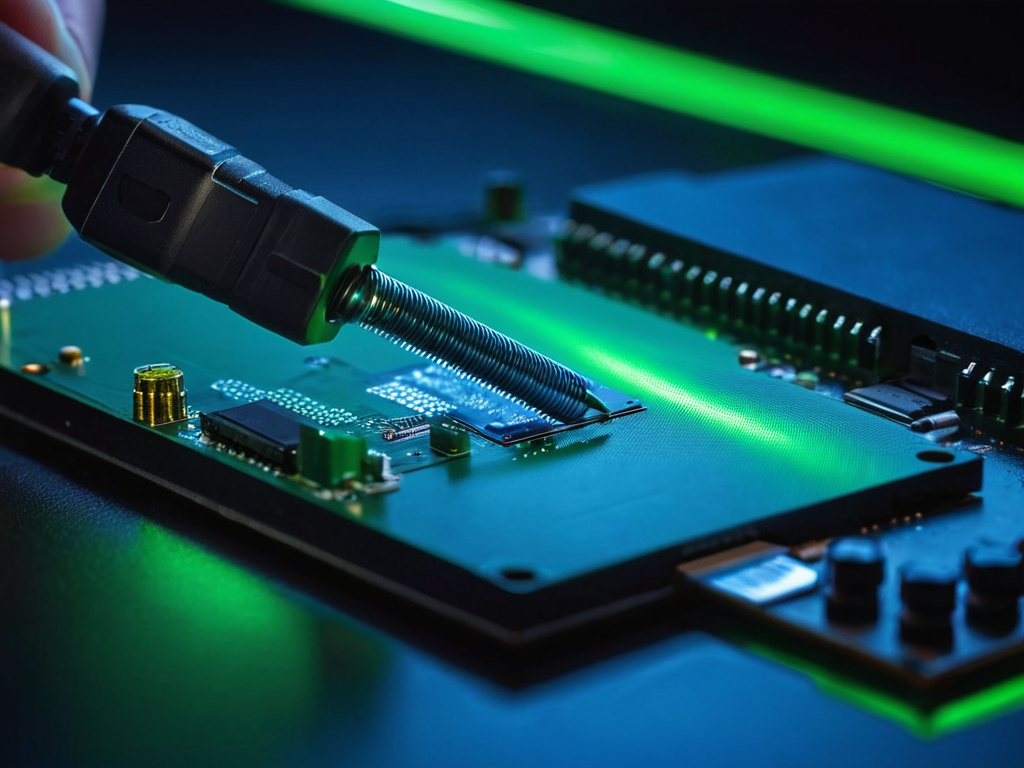
Clone the existing drive. Fastest path to a working machine with everything where it was. You need a USB-to-SATA adapter or an external enclosure, and cloning software (Macrium Reflect, Clonezilla, or the vendor's tool). Clone, then swap the drives and boot.
Two things to get right: the new drive must be at least as large as the used space on the old one, and you must clone the boot partitions, not just the data volume, or the machine will not start.
Clean install. Slower, but you get a fresh Windows without years of accumulated software, and SSDs make the reinstall process painless. Back up your data first, note your licences, and reinstall.
For a machine that has been running for years, the clean install is usually worth the extra evening.
After The Swap
Check TRIM is on. It is what keeps SSD write performance from degrading over time:
fsutil behavior query DisableDeleteNotify
DisableDeleteNotify = 0 means TRIM is enabled. 1 means it is disabled — which usually only happens on legacy configurations.
Do not defragment it. Defragmenting is a mechanical optimisation and does nothing useful on flash; Windows disables scheduled defrag for SSDs automatically, so leave it alone.
Keep some free space. SSDs need room for wear levelling. Below about 10–15% free, write performance drops noticeably.
Do not expect the old drive to last as a backup. A used spinning drive is not a backup medium. Copy what you need off it and retire it.

The Honest Caveats
Check the drive's health if the machine is old. A dying power supply or failing SATA controller does not care about your new drive.
Laptop battery life may improve slightly (no spinning platter) or worsen slightly (SSDs can idle less efficiently), but this is not a reason to buy or avoid one.
Price per gigabyte is worse than a hard drive. For bulk storage — media archives, backups — a spinning drive is still the right choice. SSD for the system, HDD for the archive is the combination that makes sense.
The claim in the title holds up, with one qualification: you will not go back for a system drive. You will probably still own a hard drive for everything else.
Don't trust the download button. Trust the hash.
If this was useful, More hands-on tech guides at TechGeek. No pressure — read it whenever it's useful.
