Multifactor Authentication: What It Is and What To Use
The Three Kinds of Factor
Authentication asks you to prove something. There are only three kinds of proof:
- Something you know — a password, a PIN
- Something you have — a phone, a security key, a smart card
- Something you are — a fingerprint, a face
Multifactor means combining two of those different kinds. A password plus a second password is not multifactor. A password plus a code from your phone is.
The reason it matters is simple arithmetic: a password can be stolen from a breach you do not control, reused from a site that got it wrong, or guessed. Your phone being in your pocket is a physical fact an attacker on the other side of the world cannot easily change. Adding that second requirement means a leaked password alone is no longer enough — and leaked passwords are the most common starting point for account takeover.
Ranked, Weakest To Strongest
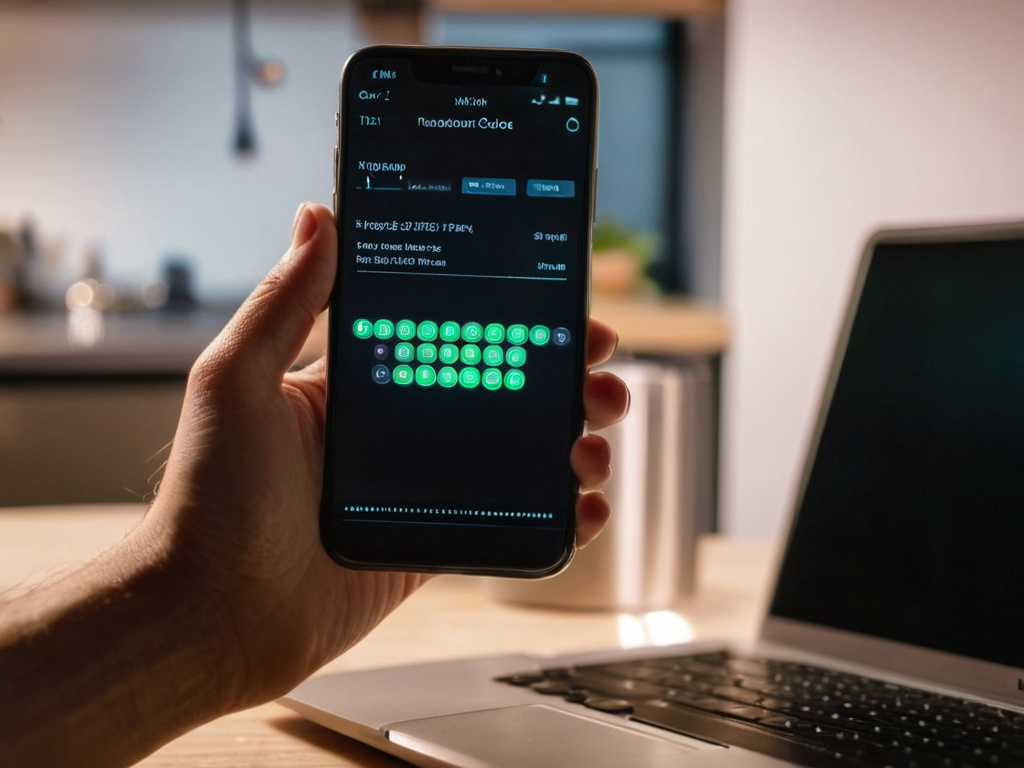
SMS codes — better than nothing, and that is the whole endorsement. Interceptable via SIM swapping (someone convinces your telco to port your number), and unreliable when you travel or lose signal. Still worth enabling on accounts where it is the only option, and it does stop the overwhelming majority of automated attacks.
Email codes — roughly equivalent to SMS, with the same weakness: if your email is compromised, so is this. Circular if the account being protected is the email account.
TOTP apps — the sensible default. A code generated on your device from a shared secret, no network needed, no phone number involved. Works offline, survives travel, and is not vulnerable to SIM swapping.
Push notifications with number matching — strong, and convenient. You open the app, it shows two digits, you type them into the login screen. That number-matching step is what stops "MFA fatigue" attacks, where someone spams approve prompts until you tap yes out of irritation.
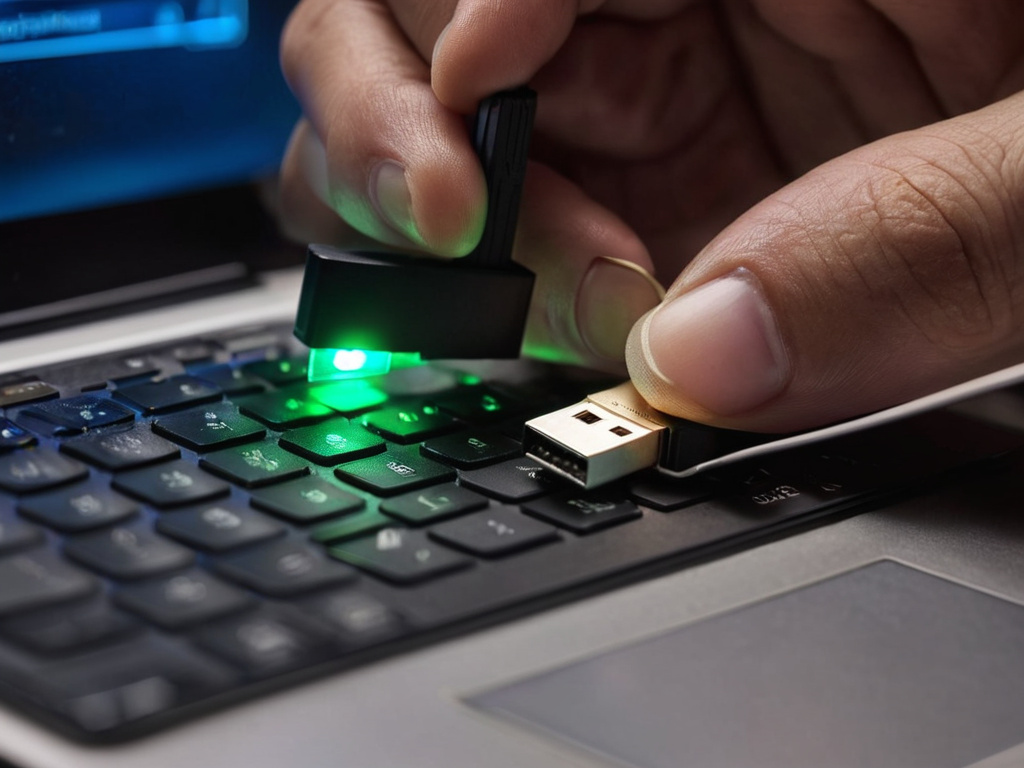
Hardware security keys — strongest. A USB or NFC key that speaks FIDO2. Phishing-resistant by design: the key checks the domain, so it simply will not answer a lookalike site. This is the option I would use for email and banking if I were choosing one.
Passkeys — hardware-key strength with everyday ergonomics. A passkey is a FIDO credential stored in your platform's keychain (phone, laptop, password manager), unlocked by biometrics. Recent mainstream adoption has made this genuinely practical, and it is where everything is heading.
How To Turn It On, Without Getting Locked Out
The mechanics vary by site but the flow is the same: account settings → security → two-factor → choose a method → scan a QR code or register a key → save the recovery codes.
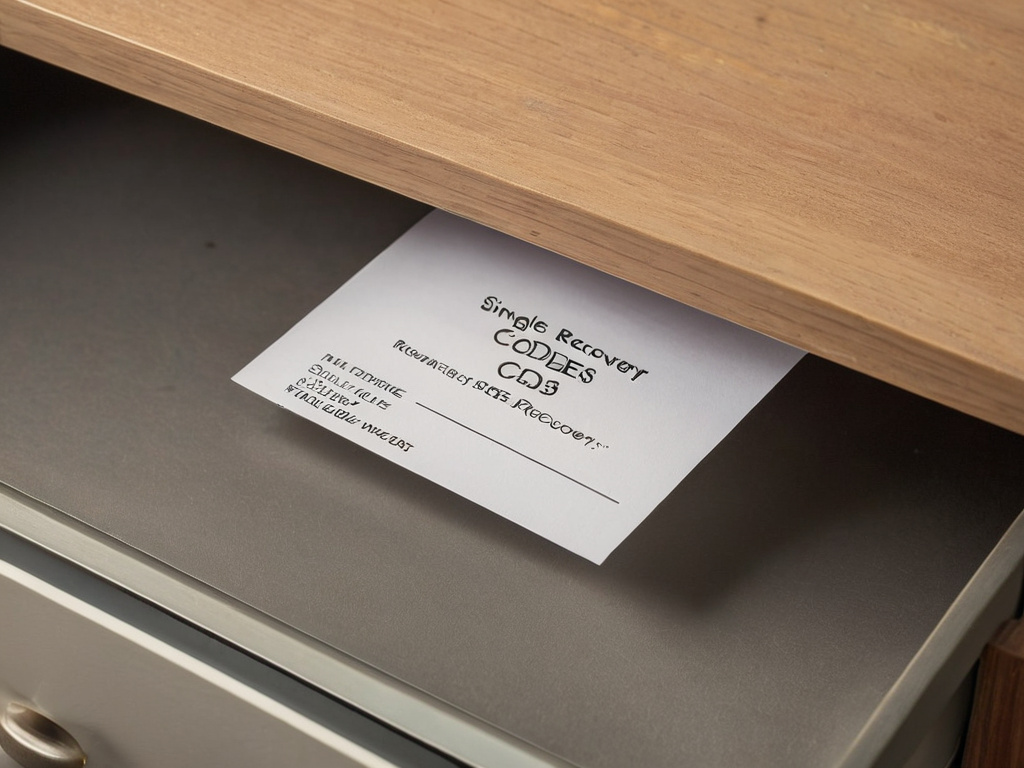
That last step is the one people skip and then regret. Recovery codes are a list of single-use codes that work when you lose your second factor. Print them or put them in your password manager, and store them somewhere that is not the device you will lose.
A specific trap with authenticator apps: your codes live on one phone. If that phone dies or is wiped, every account using it needs a recovery code simultaneously. Two mitigations worth knowing:
- Most TOTP apps now support encrypted backup or sync. Turn it on.
- Better, register two devices where the site allows it — a phone and a tablet, or a phone and your password manager.
Where To Start
Not everywhere at once — that is how people end up locked out of three accounts in one evening.
In this order:
- Email. It is the recovery route for everything else. Protect it first.
- Banking and anything with a card.
- Password manager.
- Anything with money, identity documents or admin access — cloud consoles, domain registrar, hosting.
- Social and shopping, as time permits.
Most of these now support passkeys or TOTP. If a site offers only SMS, use it — a weak second factor still beats a password alone.
The Failure Modes Nobody Warns You About
MFA fatigue. Repeated push prompts until you approve one to make it stop. This is why number matching matters and why you should never approve a prompt you did not initiate.
Real-time phishing proxies. A site that looks like your bank, collecting your password and your TOTP code and replaying them within the 30-second window. Codes are phishable; hardware keys and passkeys are not, because the key binds to the domain.
Losing the device. Covered by recovery codes and a second registered device, if you set them up in advance. After the fact there is nothing to do but go through the provider's identity verification, which for some accounts means permanently losing access.
Assuming it makes you safe. MFA protects the login. It does not protect a session cookie stolen by malware on an already-compromised machine, and it does not stop a malicious app you installed yourself.
The Short Version
Turn on TOTP or passkeys for your email, your bank and your password manager this week. Save the recovery codes somewhere physical. Prefer a hardware key or passkey where the site supports it, because those are the only options that cannot be phished.
Everything else is a refinement of that. A leaked password plus a second factor you control is a failed attack, and that is a large fraction of what gets attempted against you.
Don't trust the download button. Trust the hash.
If this was useful, More hands-on tech guides at TechGeek. No pressure — read it whenever it's useful.
