How to Actually Use a Speed Test Website (and Get Numbers You Can Act On)
I run a house full of devices that pull data without asking — Raspberry Pi builds grabbing updates, the car downloading its software and maps, a media box buffering before I've even sat down. When any of them start lagging, everyone reaches for the same thing: open a speed test website, hit GO, look at the number.
And that's fine as far as it goes. The problem is that one click gets you one number, in one moment, against one server — and a single number can't tell you whether your line is slow, your Wi-Fi is slow, or your expectation is just wrong. This post is how I use the speed test website properly: what's actually on the screen after GO, the settings most people never touch, and the small habits that turn a green number into something you can act on.
What's Actually on the Screen After You Hit GO
Take speedtest.net as the example — it's the one most people know, and it's run by Ookla. Hit the big GO button and when it finishes you get three numbers: download speed in Mbps, upload speed in Mbps, and ping in milliseconds. Ping is the round-trip time to the test server; it's the number that decides whether a video call feels instant or rubber-bandy, while download and upload decide how fast things move.
Two more things sit on that results screen, and they're worth more than the headline number. First, the server card: which ISP runs the server, its IP address, its city. Your test just measured the path between your house and that one machine — knowing which machine is half the diagnosis. Second, every result gets a Result ID and a shareable link. That link is a receipt: it records what you got, against which server, at what time. Most people never look at it. I save it — more on that below.
Set Up Before You Test
Most slow results aren't the line's fault. Before the first GO of a session, quiet the house: pause cloud sync, stop OS updates, and keep other devices off heavy downloads. You're measuring the line, not the household's habits.
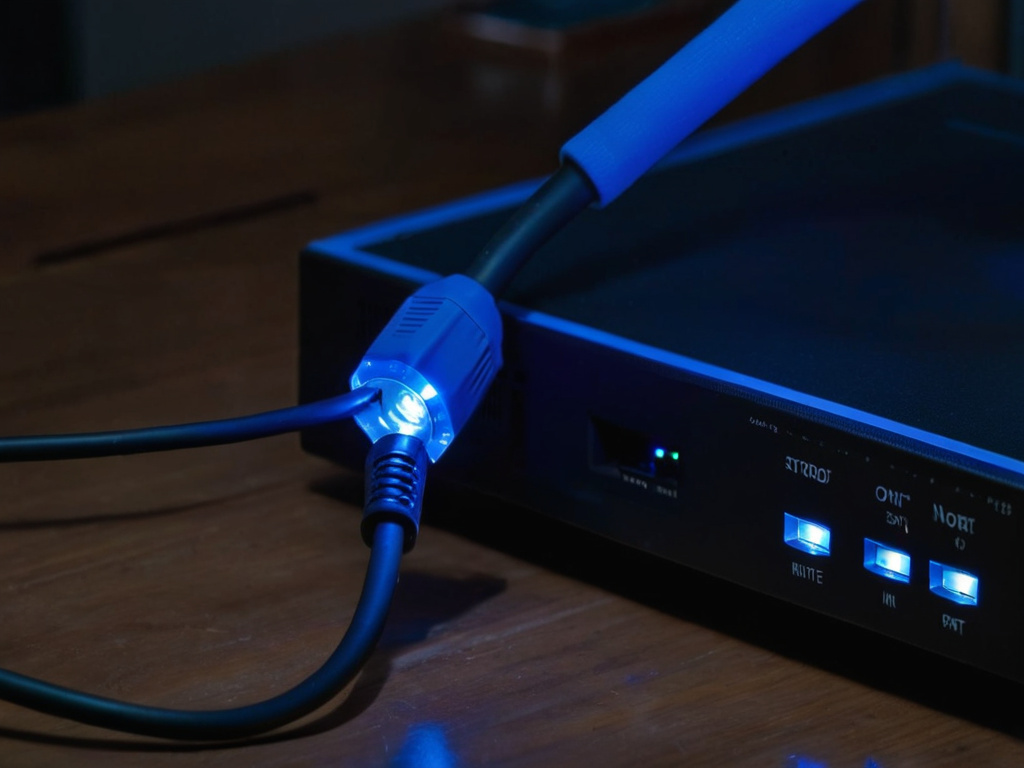
Then run the test twice, from two places in the chain. First over Ethernet — laptop plugged straight into the router with a cable. That removes Wi-Fi from the equation and gives you the cleanest number for what your ISP is actually delivering. Then test again over Wi-Fi, sitting where you actually use it — the couch, not next to the router. The gap between those two numbers tells you how much of your experience lives in your own network rather than on the provider's side. If the wired number is fine and the wireless one is weak, no amount of complaining to the ISP will fix it; the work is on your own gear.
The Settings Most People Never Touch
Two controls on the site change what you're measuring, and almost nobody touches them.
Multi or Single. The site offers a connection mode: Multi runs several streams in parallel and shows the maximum potential speed your line can push; Single uses one connection at a time, which is best for testing over a VPN or simulating a single big download. If you want to compare against what a single file transfer feels like, run Single. If you want the ceiling, run Multi. Just know which one you ran — mixing them in your log makes the numbers meaningless.
Change Server. By default the site picks a server for you, usually close by. The server card has a Change Server option, and it's worth using: run the same test against two or three different servers. If one server always comes in low while others are fine, the problem is that server's path, not your line — and now you can say so with evidence instead of guessing.
One more note, straight from Ookla itself: on the results page they recommend their free desktop app for lines above 100 Mbps, arguing it tests more accurately from your computer than the browser does. I keep the website as my first stop because it's one tab away, but if you're on a fast line and the browser number looks off, that's the next thing to try.
Run It Like a Measurement, Not a Mood Check
A speed test is a measurement, and measurements only mean something when they're repeatable. My habit: same device, same cable or same spot on the couch, roughly the same time of day, and the result logged in a plain text file — date, time, wired or Wi-Fi, which server, and the Result ID link from the results screen. It takes a line or two to type, and it's the difference between "the internet is rubbish" and "wired download has been low for weeks, here are the receipts".
Time of day matters more than people admit. Networks are shared: the same line at breakfast and at the evening peak can give very different numbers. Run your test at the time the problem actually happens — if streaming stutters in the evening, a morning test is measuring a different network than the one you're complaining about.
And re-test after every change. New cable, new router, moved the Wi-Fi point — run the same test the same way and see whether anything moved. It's the only way to know a fix did anything at all.
When the Number Is Wrong: Walk the Chain
When the wired number comes in low, work through the chain from your side toward the ISP's, because each step is cheaper than the next.
Cable and port first. A damaged Ethernet cable or a port that isn't negotiating properly will cap your wired test no matter how good everything else is. Swap the cable before you touch anything else — it's the cheapest thing in the chain.
Your Wi-Fi, if the wireless numbers are what's bad. 2.4 GHz reaches further but carries less; 5 GHz and newer bands carry more but don't pass through walls as well. Neighbouring networks crowd the channels your router sits on, and the crowding is worst at the hours everyone's home. Your router's admin page shows which channels are busy — moving to a quieter one is free.
The modem or wall box. If the wired test is low with a fresh cable and a different port, the problem is upstream of your own gear. Unplug the wall box for a full minute, plug it back in, retest. Still low? Now you've got an ISP-side problem with evidence attached.
The device itself. A tired Wi-Fi card or an old network driver can underperform on its own. Running the same test from a second device rules this in or out quickly — and if only one device is slow, you've found your answer without calling anyone.
What to Do With the Numbers
A number you never use is just decoration. Three things I actually do with them:
- Compare against the contract, not anecdotes. Your plan advertises an "up to" tier. "Up to" means a ceiling, not a promise — but if your wired, evening, repeated tests sit consistently far below it, that's a support call worth making, and the log is what makes it stick.
- Keep the receipts for the provider. When you call, "it feels slow" gets you a script; dated results with server names and Result ID links get you a ticket that goes somewhere. Ookla even keeps a guide on preparing to talk to your ISP if you want the official version of this.
- Know what you need before you upgrade. Before paying for a bigger tier, be honest about what the house pulls: how many devices stream, whether anyone uploads large files, what the video calls look like. Ookla's how much speed do you need page is a fair starting point for that conversation with yourself.
The speed test website is a good instrument — better than most people use it. Point it at one server, quiet the house, run it wired and wireless, log the receipts, and walk the chain when the number drops. Do that and the green number finally means something: not marketing, but a measurement you can act on.
Don't trust the download button. Trust the hash.
If this was useful, More hands-on tech guides at TechGeek. No pressure — read it whenever it's useful.
