How to Back Up Windows with a System Image
Two Kinds of Backup, Different Jobs
Most people who say "I back up" mean File History or a sync to OneDrive. That is a copy of your documents and pictures, and it is genuinely useful — it survives a dead drive and it is small enough to keep in two places.
It is not a system backup. It does not capture your installed applications, your drivers, your registry, your licences or the exact configuration that took you two years to get right. Rebuilding after a drive failure with only a file backup is a weekend of reinstalling and re-licensing.
A system image is a byte-for-byte copy of the whole volume: operating system, applications, settings, files. Restore it and the machine comes back exactly as it was, on new hardware or the same disk.
The honest answer is you want both, and they answer different disasters.
| File History / sync | System image | |
|---|---|---|
| Recovers a deleted document | yes, easily | clumsily, full restore |
| Recovers a dead drive | data only, reinstall required | yes, exact state |
| Reverts after a bad upgrade | no | yes |
| Size | small, incremental | as large as used disk space |
| How often | hourly/daily | before risky changes |
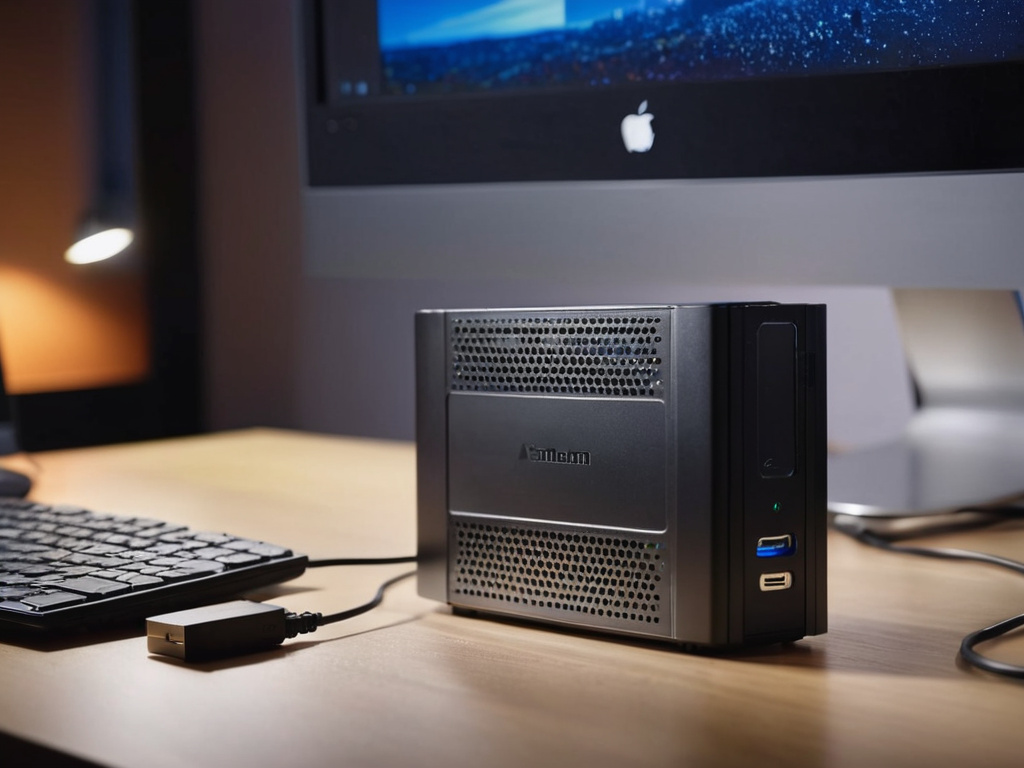
Make the Recovery Media First
This is the step everyone skips and then regrets. An image you cannot boot to restore is a very large file.
Windows includes Create a system repair disc (or a recovery drive, which needs a USB stick of 16 GB or more). Make it before you make the image, and label the stick.
Without it, if the machine will not boot, your image sits on a drive you cannot read. With it, you boot from the stick, choose "Repair your computer", then System Image Recovery.
Test that the stick boots at least once. A recovery USB that was never booted is a hope, not a plan.
Creating the Image
The feature lives inside Backup and Restore (Windows 7) — the old control panel applet, still present in Windows 10. Open the Start menu, type "backup", and choose "Backup and Restore (Windows 7)".
Then: Create a system image → choose where it goes → confirm what is included → start.
On destination:
- An external drive is the right choice. Fast, large, disconnectable. Use a drive you do not otherwise write to, so a mistake cannot overwrite the image.
- A network location works if it is reliable and large enough; it is slower and fails messily on a flaky link.
- DVDs were the original option and should be ignored in 2026.
The wizard offers to create a repair disc at the end. Say yes if you have not made one.
For the paranoid, or for a scheduled job, wbadmin does the same thing from an elevated prompt:
wbadmin start backup -backupTarget:E: -include:C: -allCritical -quiet
-allCritical includes the EFI or system-reserved partitions needed to actually boot the restored machine. Leaving it out produces an image that restores your files and then will not start.

Restoring
Boot from the recovery media. Choose Repair your computer → Troubleshoot → System Image Recovery. The wizard finds the most recent image on the attached drive, or lets you browse to it.
Two things to know before you rely on this:
It overwrites the target disk. Everything currently on that drive goes. If you have unsaved work on the machine, copy it off first, which usually means booting from a Linux live USB and pulling it manually.
The image restores onto a disk of at least the same size. Restoring a 500 GB image onto a 480 GB SSD fails. Larger is fine; smaller is not.
On different hardware, expect to reactivate Windows and possibly reinstall a driver or two. It is not as hardware-independent as a Mac restore, but it is far better than rebuilding.
The Feature Is Deprecated, and What To Use Instead
Microsoft has not developed System Image Backup since Windows 8, and in Windows 11 it is deprecated — still present in some builds, but not something to build a strategy on.
So treat it as: available, works, free, and on borrowed time. For a durable setup, one of these is worth the install:
- Macrium Reflect Free (long the default choice for home imaging; note the free tier has been retired, so check what is currently offered)
- Veeam Agent for Windows Free — full-image backup on a schedule, free for home use
- Clonezilla — bootable, free, images to an external drive or network share
- File History plus cloud sync — not imaging, but the thing that saves you when one file dies
Whichever you pick, the discipline is the same: image before major upgrades, keep the image on a drive that is not the machine, and keep a second copy somewhere else.
The Rule That Matters
One backup is not a backup. A system image on an external drive in the same room survives a drive failure and does not survive a burglary, a fire or a flood.
The version I would actually recommend: a system image on an external drive taken before major changes, File History or cloud sync running continuously for documents, and a copy of the critical data somewhere off-site. Costs a drive and an evening to set up, and it turns a catastrophe into an inconvenience.
Don't trust the download button. Trust the hash.
If this was useful, More hands-on tech guides at TechGeek. No pressure — read it whenever it's useful.
