Find the Largest Files on Linux with a 25-Line Bash Script
You're running a service, a container, a home server — and something is eating your disk. You type df -h, see the partition at 94%, and now you need to find out what's actually taking up space. Not "some directory is big." You need the specific files, sorted by size, with numbers your brain can parse without doing base-1024 math in your head.
Here's a 25-line bash script that does exactly that. No dependencies beyond what Ubuntu ships in its base image — no jq, no python3 -c, nothing to install. And before I publish it, I ran it inside a clean Ubuntu 26.04 LTS container (fresh image, zero packages added). It broke once. The fix was one line. I'm telling you about both the failure and the fix, because that's where the actual learning is.
The Script
#!/usr/bin/env bash
# disk_hogs.sh — list the largest files under a directory
# usage: ./disk_hogs.sh [directory] [top_n]
set -euo pipefail

DIR="${1:-/}"
TOP="${2:-10}"

if [[ ! -d "$DIR" ]]; then
  echo "error: $DIR is not a directory" >&2
  exit 1
fi

echo "Top $TOP largest files under $DIR"
echo "=================================================="

find "$DIR" -type f -printf '%s\t%p\n' 2>/dev/null \
  | sort -rn \
  | awk -v n="$TOP" 'NR<=n' \
  | while IFS=$'\t' read -r size path; do
      printf '%10s  %s\n' "$(numfmt --to=iec --suffix=B "$size")" "$path"
    done

total=$(find "$DIR" -type f -printf '%s\n' 2>/dev/null | awk '{s+=$1} END {print s+0}')
count=$(find "$DIR" -type f 2>/dev/null | wc -l)
echo "--------------------------------------------------"
echo "Scanned $count files, total $(numfmt --to=iec --suffix=B "$total")"
How It Works
The pipeline has four stages.
find "$DIR" -type f -printf '%s\t%p\n' walks the directory tree and prints every regular file as a single line: byte size, a tab, full path. The -printf directive is a GNU find extension. It avoids spawning a separate stat process per file, which matters when you're scanning thousands of entries and don't want fork overhead eating your time.
sort -rn sorts those lines numerically (-n) in reverse order (-r). The largest byte counts end up at the top of the stream.
awk -v n="$TOP" 'NR<=n' prints only the first N lines. I'll explain why this is here instead of head in the next section — short version: pipe semantics and signal handling.
The final while loop splits each line on the tab, grabs the byte count and the path, and pipes the size through numfmt --to=iec --suffix=B. That converts raw bytes into IEC units (1024-based) with a B suffix, so 87,241,523 becomes 85MB without you doing the division.
We Ran It Before You Did
The first version of the script used head -n "$TOP" to truncate the sorted list. On a five-file test directory I'd built in /tmp/testdata, it worked perfectly. On /usr — 5,039 files — it did not.
Here's the mechanism: head reads five lines, prints them to stdout, and then closes its stdin pipe because it considers its job done. sort, still flushing its output buffer into that same pipe, receives SIGPIPE (signal 13) on its next write attempt. Under set -euo pipefail, any command in the pipeline returning non-zero causes the shell to abort immediately. The summary block never executed. Exit code: 141 (128 + 13).
The fix was a single-line swap: replace head -n "$TOP" with awk -v n="$TOP" 'NR<=n'. awk reads every line of its input before it exits, so the upstream pipe is never closed prematurely. No SIGPIPE, no early exit, no missing summary.
Second run: both test directories passed clean. Exit code 0 on both.
Run A — a small test directory with 5 files of known sizes:
Top 10 largest files under /tmp/testdata
==================================================
      85MB  /tmp/testdata/media/video_backup.mp4
      42MB  /tmp/testdata/media/photo_archive.zip
     512KB  /tmp/testdata/logs/app.log
      96KB  /tmp/testdata/docs/report.pdf
       14B  /tmp/testdata/docs/notes.txt
--------------------------------------------------
Scanned 5 files, total 128MB
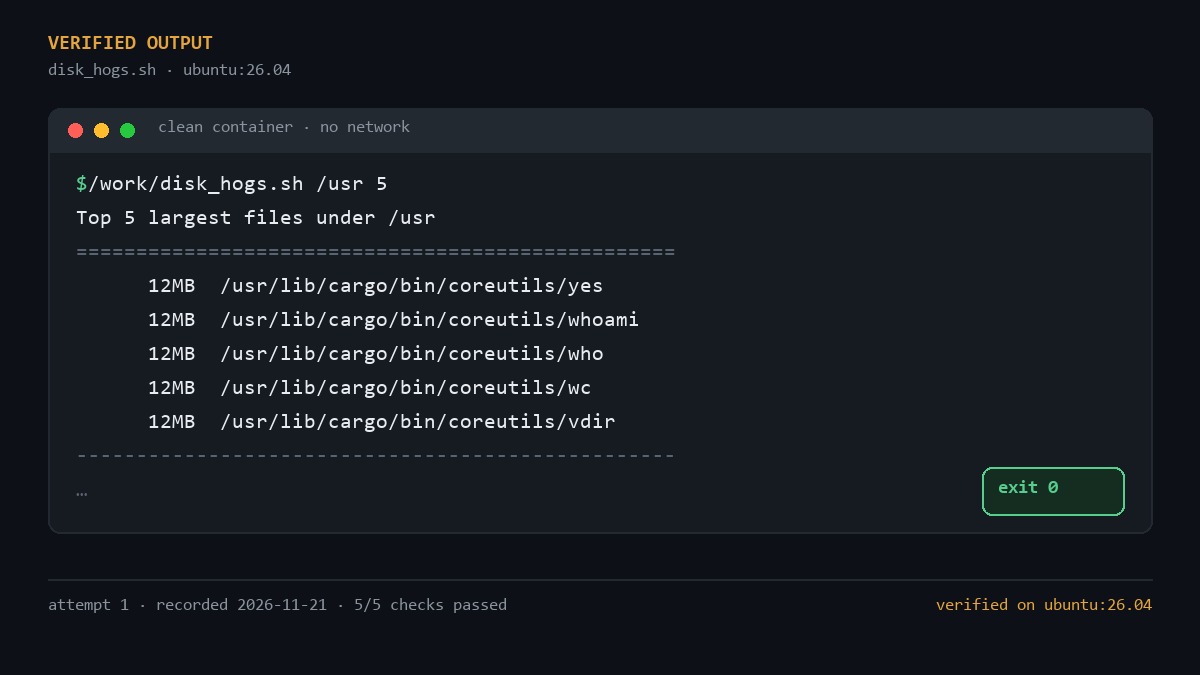
Run B — a real system, /usr, top 5, finished in 0.227 seconds:
Top 5 largest files under /usr
==================================================
      12MB  /usr/lib/cargo/bin/coreutils/yes
      12MB  /usr/lib/cargo/bin/coreutils/whoami
      12MB  /usr/lib/cargo/bin/coreutils/who
      12MB  /usr/lib/cargo/bin/coreutils/wc
      12MB  /usr/lib/cargo/bin/coreutils/vdir
--------------------------------------------------
Scanned 5039 files, total 1.4GB
(On Ubuntu 26.04 the coreutils binaries are compiled from Rust, which is why each one lands at exactly 12 MB.)
Using It
A few invocations you'll actually reach for:
./disk_hogs.sh /home 20 — top 20 largest files under your home directory. Good for finding that 4 GB Docker image or the video export you forgot about three weeks ago.
./disk_hogs.sh /var/log 5 — what's bloating your logs. If your logging goes through the systemd journal instead, journalctl --disk-usage will tell you how much of the pressure is journald's.
./disk_hogs.sh / 50 — the whole filesystem, top 50. On a large disk this takes a few seconds; the find pass is I/O-bound and there's not much to be done about that.
No arguments at all defaults to / and top 10, so ./disk_hogs.sh just works as a quick sanity check.
Known Limitations
Three things to keep in mind:
Tab characters in filenames. The pipeline uses a tab as its field delimiter. If a file is literally named my\tfile.txt, the column alignment breaks and you get garbled output. This is an edge case you'll almost never hit in practice, but it's a real limitation of the text format.
Two find passes for the summary. The total size and file count are computed by a second find over the same tree. For normal directory structures this adds milliseconds. For a 500,000-file tree it adds a few seconds. If that matters to you, cache the initial find output in a temp file and run both the sort and the sum against that file.
No symlink following. find -type f matches regular files only. Symlinks are skipped entirely. If you need to include the target of a symlink, add -L before the path argument — but be cautious with circular symlinks; find will loop until you kill it.
That's the script. Drop it in ~/bin, run chmod +x, and the next time a disk alarm pings you at 2 a.m. you'll know exactly which file is the culprit. If you hit an edge case I didn't cover, the issue tracker on techgeek.biz is open. 🐧
